
The golden rule of link accessibility: links should be descriptive! For foundational information on the why and the how, see OSU Digital Accessibility – Links.) Let’s dig deeper into a few common questions:
- Can I use “click here” or “this” for my link text?
- Can I link an image?
- Proper citations include URLs. How do we make those accessible?
- Is it ok to repeat a link multiple times on a page?
- Canvas is flagging some links that don’t seem to exist!
- BONUS link-related tip: Don’t underline regular text
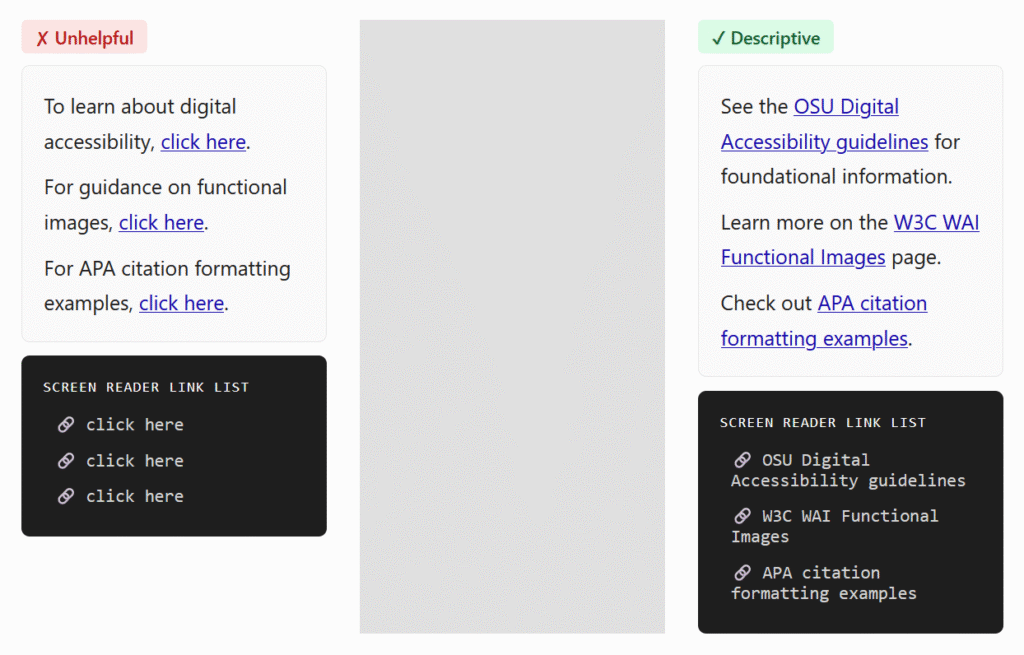
Can I use “click here” or “this” for my link text?
This practice is not ideal, and it’s best to avoid it. While WCAG does permit it when surrounding context provides enough information, you would not be creating a good experience for your audience. That type of text is not descriptive enough to show the user where the link will go, and it’s especially problematic if this text appears multiple times! Think of people skimming the content – whether visually or via assistive technologies. It’s much more helpful when the text clearly conveys the link’s function or destination. See an example below.
Can I link an image?
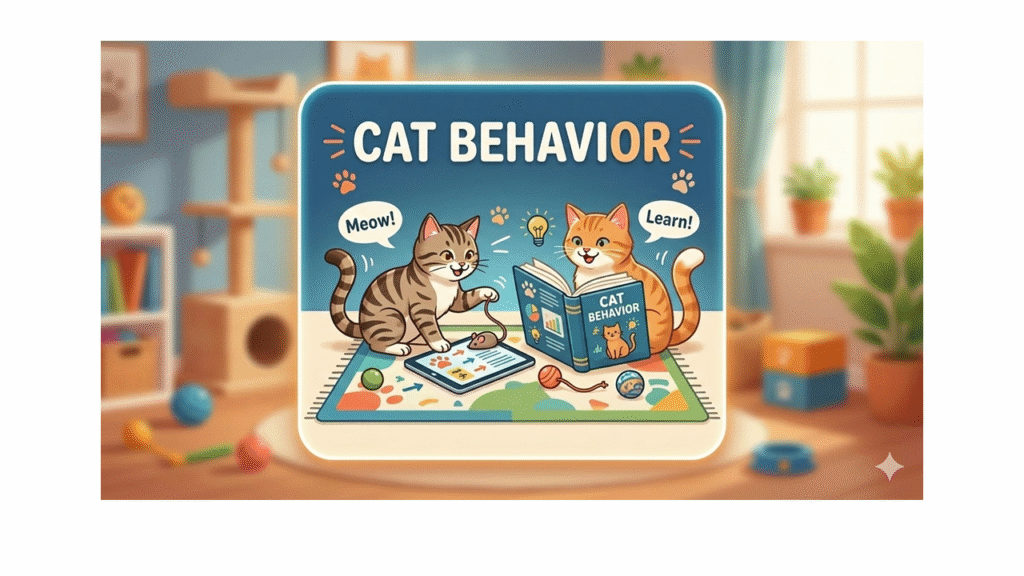
Yes, you can use an image directly as a link or button. But! If the image serves as a link on its own, make sure to write alt text that describes the action initiated by the link. The example image below is linked to an interactive lesson about cat behavior. Therefore, you would use the alt text “Cat Behavior Interactive Lesson”, NOT describe the image. See more explanations and examples on the W3C WAI Functional Images page.
Proper citations include URLs. How do we make those accessible?
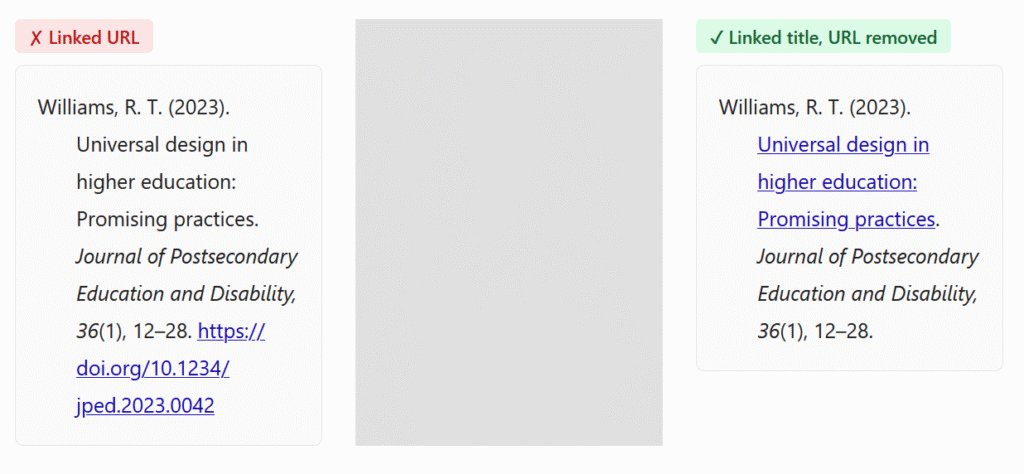
Citation styles may be strict, but they do allow some flexibility for online-only resources and materials outside of formal papers. The recommended practice is to link the work title and ditch the DOI or URL, like in the example below. Check out more examples and explanations for APA and for MLA.
Is it ok to repeat a link multiple times on a page?
Try not to! Having redundant links may increase extraneous cognitive load, since people may wonder whether they go to the same place or need to click the link again. The article The Same Link Twice on the Same Page: Do Duplicates Help or Hurt? gives a detailed explanation of why this may cause problems. The Office for Digital Accessibility at the University of Minnesota also includes “Avoid Repetitious Links” in their Dos and Don’ts.
Canvas is flagging some links that don’t seem to exist!
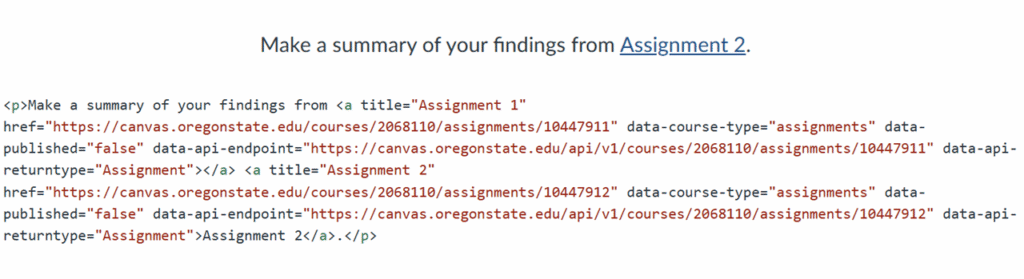
You may have noticed, on occasion, “ghost links” in Canvas. The link validator or accessibility checker says there’s a broken or duplicate link, but when you look at the text, there’s nothing there. However, if you switch to the HTML editor, you’ll find the link lurking underneath. In the example below, you can see that there are actually two links instead of one: the Assignment 1 link was not completely deleted when I replaced it with Assignment 2.
What happens is that sometimes, if you delete text without unlinking first, the link may persist. To avoid this situation, make sure to remove the links before deleting or pasting in text.
BONUS link-related tip: Don’t underline regular text
Usually, links are underlined, and most people think of links when they see underlined text. This may be confusing when they try to access the link and it doesn’t work. In addition, underlining is just not a good way of highlighting information. For more information, see an article and video from Boise State University: Underlined text.

These practices make your course more readable, easy to navigate, and overall, more enjoyable for your students!
