My last post was about instantiating a front-end React table as a feature of the Capstone project I am a part of – a Microsoft Teams bot for automating and scheduling Office Hours. Despite having a penchant for procrastination when things become more of a grind and having to face learning React for the first time, I chunked the task down into manageable parts and success! I ended up getting a working front-end example towards the end of the week. Excited to share my work, I set up the PR and…the build failed. Ah, it was just some code formatting and after running the formatter, the build passed. I am ready to request a review before GitHub alerts me that there would be a merge conflict between this and our master branch.
Turns out I am attempting to overwrite package-lock.json, an autogenerated file from the result of npm either recognizing new dependencies declared within package.json or the /node_modules directory changing, allowing all who obtain and run the code to be guaranteed to run the same versions of all required dependencies. And it seems that the master branch has had its package.json and package-lock.json change since it has gained a couple new features from teammates’ changes, but still, those changes are on the bot side of the code and this front-end React table is going to be displayed and interacted with in a tab whose code exists in an entirely different directory of the codebase, what is going on?
After some investigation, I had some extraneous changes leftover within package-lock.json that was from previous work whose changes I did not get rid of (using the git restore <filename> method to discard unwanted changes) before committing. Whoops. The first step I attempted was to manually resolve the conflicts which quickly turned out to be unreasonable. This is because package-lock.json tracks all dependencies, including all the dependencies of the dependencies, everything that is needed by npm to make the software run. Also, package-lock.json is 5000 lines long. The combination of these two problems made manual resolution infeasible. Deleting the file would not work as the auto-generation of the file could lead to breaking changes due to different versions being pulled in compared to the previous. Deleting the file from my repo would delete the file from master when PR would be merged, and to make things more challenging for this Git novice was that I had appended about 20 commits upon the erroneous one that was pushed to my remote feature branch. Frustrated head-scratching ensued as I realized I am entering a rabbit hole.
My Git experience and know-how is quite basic, and am comfortably able to do a lot of the basic operations of pulling, committing, pushing, branching in order to get work done. The rabbit hole I entered was looking for a way to only undo the changes I made to a single file a long time ago while keeping the rest of my code intact. This involved many open browser tabs and trial-and-error, and a night of sleep to get past. I tried obscure commands I read on StackOverflow. I attempted to use git revert (which would undo the changes of a commit, however, this undoes all the changes of the commit, I just needed a single file). At the advice of a teammate, I attempted to rebase my feature branch onto master using git rebase (which attempts to take all the commits of one branch and reapply time to another branch, such as attempting to rebase my feature branch from an older version of master to the newer one. However, this would still apply the erroneous change to package-lock.json and did not work for my case). Two failed branches and multiple attempts later, I came across the solution!
You first have to find the commit within your branch’s history using git log, and more interestingly you can pass a filename as well in order to see changes just for that specific file:
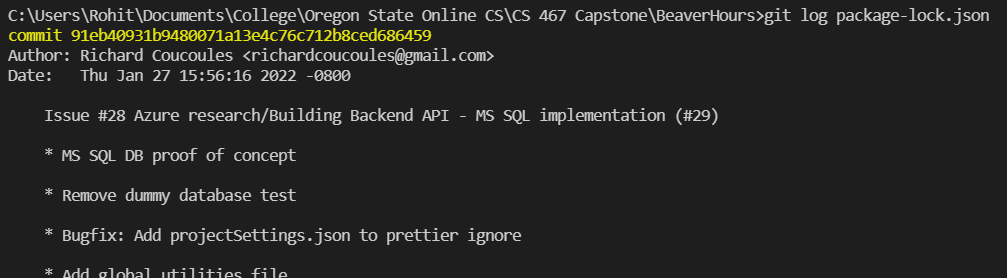
After finding the commit you are interested in, you can get that version of that singular file using git checkout <commit hash> <filename>, which will bring that version of the file from that point in time, into the present within your current branch, available for you to commit now again. You can even find the commit in which the breaking change is known and append a ~1 to the <commit hash> to get the version of the file in the previous commit (git checkout <commit hash>~1 <filename>). Wow. Wish I had known this earlier.

It was a frustrating process but I am happy to report I made it to the other side – the file was recovered to a working state, the merge conflicts error stopped, and the PR can now be properly merged and reviewed. The rabbit hole is a rite of passage as a programmer, and as a result, I learned something new because of it. It is frustrating when in the middle of it, but I look back at some of these rabbit holes I get stuck in with a sense of appreciation. Sometimes. It still sucks though.
Best of luck!
