This week in my capstone project, I learned more about using SFML with C++. SFML is a lightweight audio and graphics library which I am using to develop a UI as well as the basic functionality for an audio loop station. This week, more time was invested in the UI look and feel, as well as the addition of sliders and text boxes in the UI, and some more complex window functionality.
Designing the SFML UI
The first order of business for this week was setting up the UI to include more of the functionality I had built, as well as adding items for use in future features. The UI is shown below
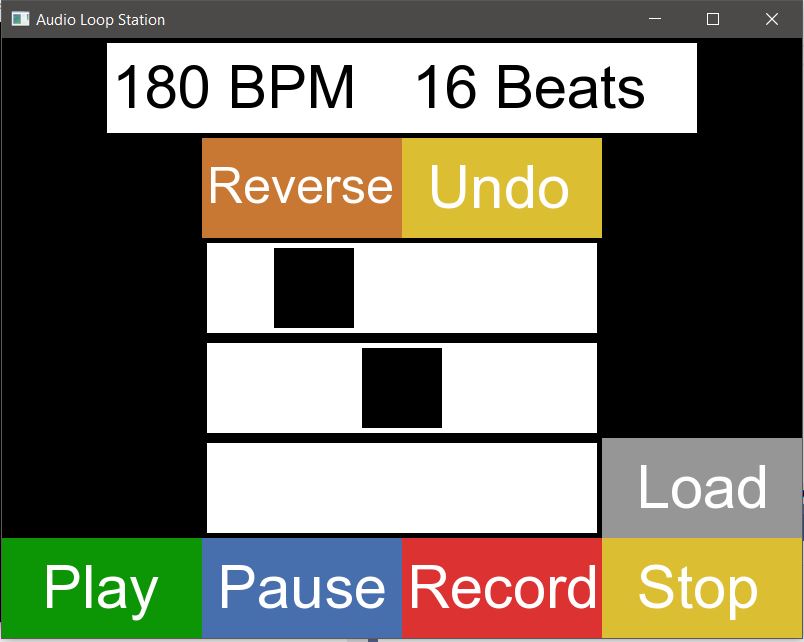
Here, some final features can be seen. From the top, the first thing you see is the “180 BPM” and “16 Beats,” the tempo and length of a loop in beats, respectively. These are set up when the application is first opened, and determine how long a loop will record for.
The next two buttons are reverse and undo. Reverse will be implemented later, but undo will remove the previously recorded loop from the playback.
Below reverse and undo are two sliders and a text box, which aren’t quite fully functional. Finally, the bottom bar shows ‘Play,’ ‘Pause,’ ‘Record,’ and ‘Stop,’ which all perform their respective functions on the audio loops.
New SFML UI Elements
As mentioned before, there are two sliders and a text box, all semi-functional right now. Both of these have been very interesting challenges, and I’ve learned quite a lot about how to create them.
First, the sliders can be adjusted and output a value from 0 to 100, left to right respectively. The way I managed to get sliders to work is by using SFML’s events, and first checking if the mouse was clicked somewhere inside the white box. Then, the black box will change position to the click location, and update its value. This means the slider can’t be ‘dragged,’ but SFML has a mouse released event which could do this.
Next is a text box with the load button. Text boxes have proven tricky with SFML, so it does not yet function. One solution is essentially to have typed text print back out in the box, like shown here. However, I’m not sure about how to ‘click’ the box, then edit.
Complex SFML Window’s
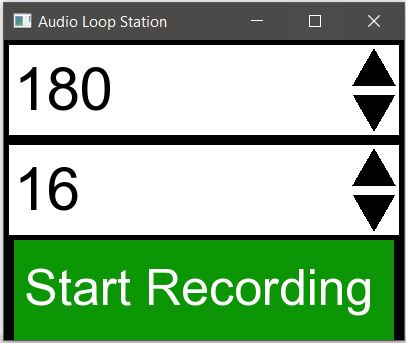
One important item for setup in the audio loop station is setting the tempo and loop length, shown at the top of the UI. This should be set prior to recording, and not be changed later. This means it should be set up before the main UI is launched. I tossed around a few ideas for this, and eventually settled on using a separate UI window.
This window simply takes these two inputs, then launches the main UI, parsing the values. As shown below, the tempo and length have up and down arrows for changing the values. Text could be used, but the values should change a small enough amount that arrows would suit the needs.
Overall, the Audio Loop Station is coming together very well, and I am looking forward to sharing how the new UI elements will work.
