Background
It’s interesting to think about how many things have changed over the course of my CS journey, and how an increased familiarity with the field has changed my understanding of so many things. Some are pretty funny now in hindsight – I remember struggling a lot at the beginning over what IDE I should use as if it was some huge commitment that would take time to overcome if I changed my mind. While that’s not the case now, I would like to take some time today to describe why I like to use Vscode and some of the more interesting aspects of it.
My experience prior to picking up with Vscode is pretty straightforward.
- During my first CS class at my first university, I used Eclipse
- During my first CS class at OSU, I used a mix of Vim (for 161 in C++) and PyCharm (for 162 in Python)
After getting the basics of Vim down, and largely disliking the heaviness of PyCharm, I picked up Vscode and never looked back.
Why Vscode?
There are two primary reasons why I use vscode – the first is speed and resource usage, and the second is its configurability. The former of these reasons was really the biggest motivating factor – vscode is incredibly lightweight, mostly owing to the fact that Vscode falls somewhere between being a text editor and an IDE. Like other options like vim, emacs, or nano, VsCode opens up nearly instantaneously as compared to heavy IDEs like PyCharm.
As for the latter reason – configurability – vscode’s strength in this area lies in the sheer number of extensions that are available. You can really tailor vscode to your needs, and if there’s something you wish vscode could do, there’s likely an extension someone out there has created to do it. Perhaps the best example of the configurability of vscode can be seen in the vim extension – you can access the typing speed and keybinds of vim all within the vscode window while still having access to vscode’s options like remote session explorers, easily manageable terminals, and debugging capabilities.
Interesting Vscode features
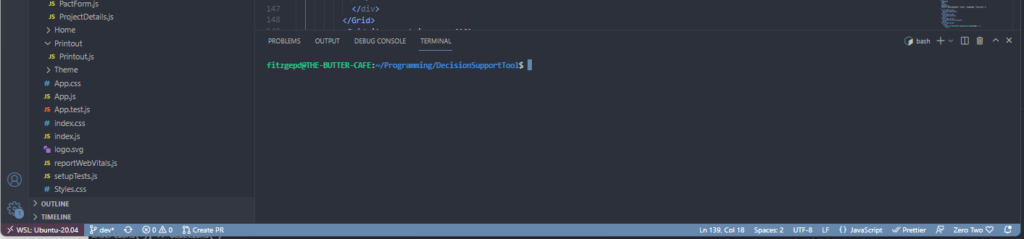
Load inside of WS2
For those who use Windows Subsystem for Linux, vscode provides an easy way to automatically load up into whatever distribution you have set up. It’s essentially like having an incredibly easy to access virtual machine
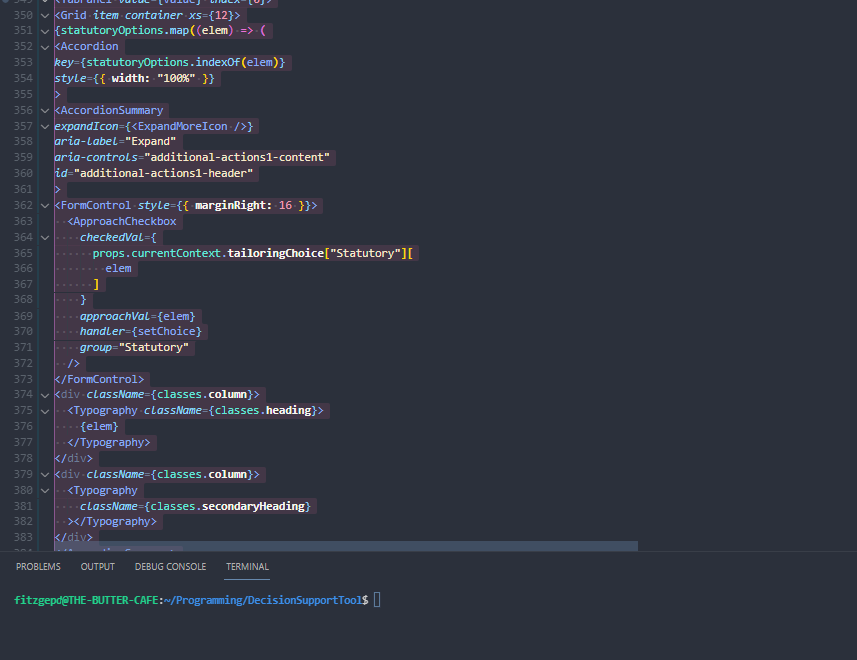
Balance Outward
Quickly select the entire tag/closing tag for things like divs

Insert Customizable Snippets
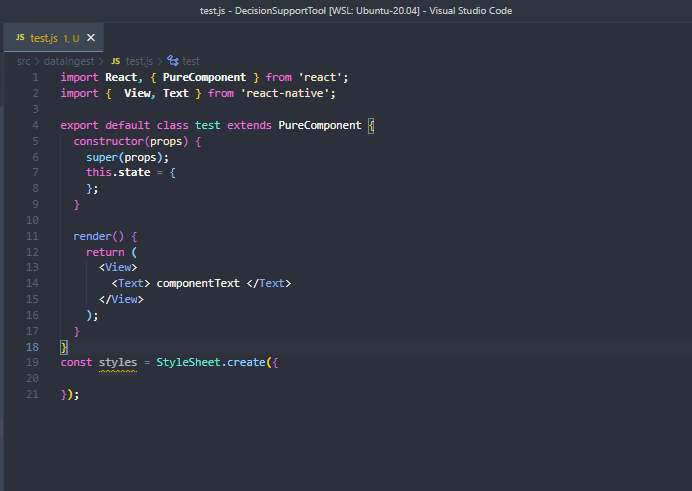
Like many other options, Vscode offers the ability to insert snippets for multiple languages via some of its core built-in features. However the true power here lies in some of the extensions that surround these inserts – after installing a few, you can completely control what’s populated and set keybinds for those that you use the most often.
Format on Save
Set up your preferred settings for formatting and enable format on Save to quickly sort out messy code.

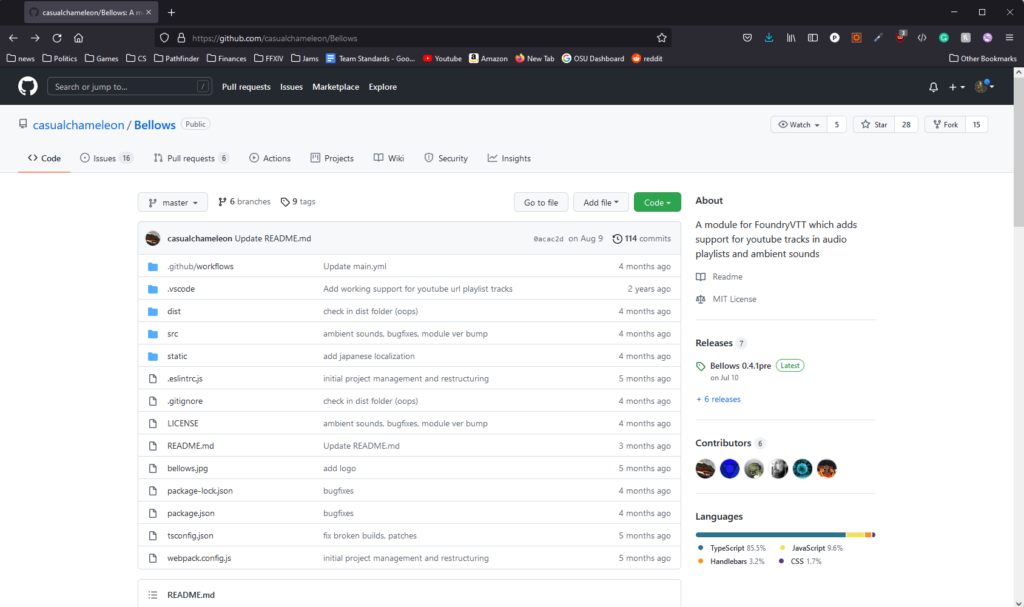
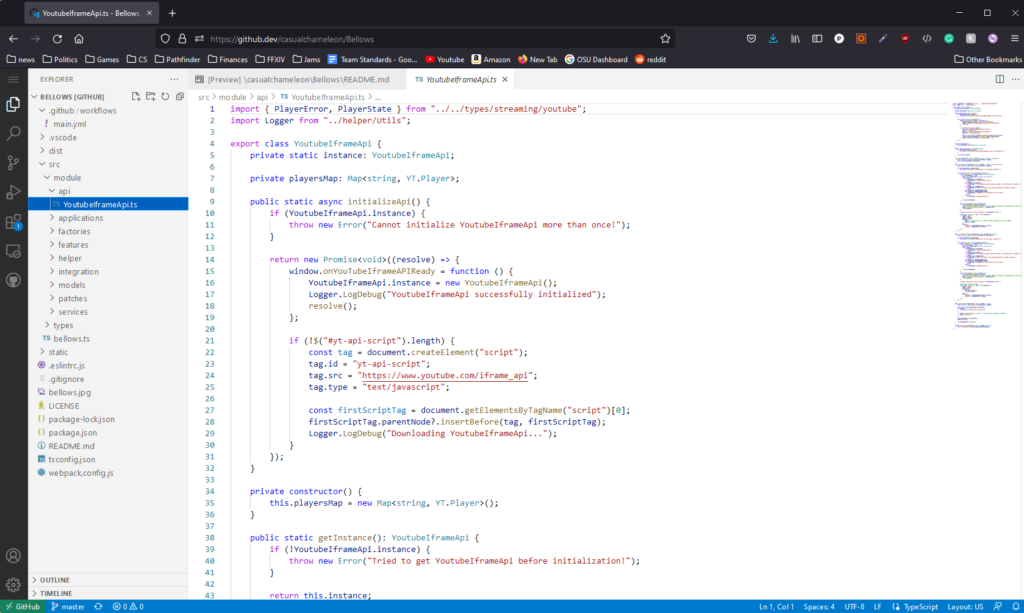
Bonus – Press Period (‘.’) on any github page to open up vscode in your browser!
Final Thoughts
There are multiple other reasons why I’ve stuck with Vscode over the years, but ultimately I will leave it up to others to decide if it’s a good fit for them. I hope this at least served as a good introduction, and potentially even sparked your interest in checking it out if you haven’t used it previously.
